Showing posts with label GUIDE FOR PC SOFTWARE USE. Show all posts

Wednesday, 27 January 2016

how to play 3d movies with VLC complete guide

VLC is certainly a popular video player, thanks to its ease of use and its adaptability. It is an open source program that runs some of the most common video formats, including .flv, the typical format you’ll find on Vimeo and YouTube. You can even use it with some simple modifications to play movies in 3D.

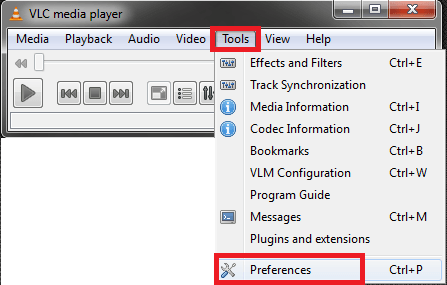
Here’s how to play 3d movies on VLC. Start by opening your VLC player, then clicks Tools on the toolbar.
vlc
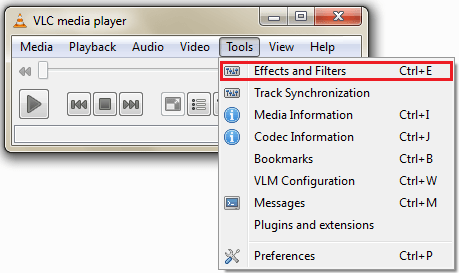
Next, click on Effects and Filters. From that menu, click Video Effects.
vlc
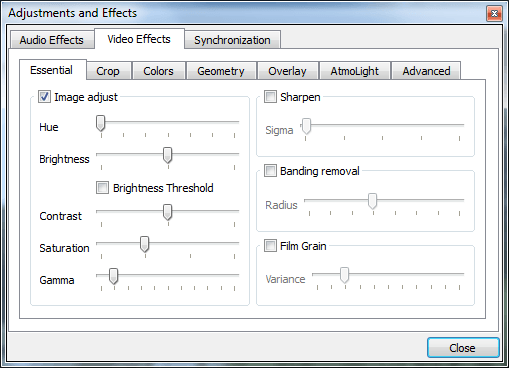
Once you’ve clicked on Video Effects you’ll then click on Vout/Overlay. There is a checkmark next to Wall you’ll need to click, as you see in the image below. You will want to have the Rows set to 3 and Columns set to 2. Once you’ve made your selections, you can now see VLC appears in multiple windows. Pick one of the windows, enlarge it to full screen, and you’ll be watching your movie in 3D.
vlc

You can manipulate the aspect ratio for playback, too. Launch your VLC player, and then click on Tools, then Preferences. Click on Show All Settings that you’ll see at the bottom of the screen. Navigate to the Video section, click Custom Aspect Ratio and adjust it to 32:9. Close VLC and restart the program.
Next, go back to the Tools menu, click on Effects and Filters, and then Video Effects. From there, select Crop and put in 960ox for the value on the right. Then go to the Menu and click on Video, then on Aspect Ratio. Change this also to 32:9, and you should also select 1920 X 816 for your screen resolution setting for the best picture quality. To really get the best effect, you’ll need 3D glasses, too, and a good laptop or monitor screen.
That’s just how easy it is to watch vlc 3d movies. A few clicks and you’re on your way.
If you want to know how to play 2D movies, just launch your VLC player, choose the picture quality you want to view it in, and start watching.
There’s another way to play movies on your computer, and that is by using the Wondershare Video Converter Ultimate. You can play both 2D and 3D movies on it or convert video to 3D easily.

mayb that might helps u..thanks

How do I download and install my Avira product?

This article refers to the installation of an Avira Antivirus Product on your Computer or Laptop. If you would like to install Avira Antivirus on a mobile device such as a smartphone or a tablet please read the article: How do I install Avira Antivirus for Android?

Download the Avira installation file In order to install the desired Avira software, you must first download the corresponding Avira installation file to your computer. Click on the required Avira product and note where your installation file will be saved.

Installation of the Avira product
  1. Start the Avira installation by double-clicking on the downloaded installation file. If you are asked by the User Account Control for the installation permission, confirm with Yes
  2. Avira scans your device for incompatible software. Please uninstall any detected incompatible software before continuing with the Avira installation
  3. Select the "Express (Recommended)" installation option
  4. Accept the End User License Agreement and click Next
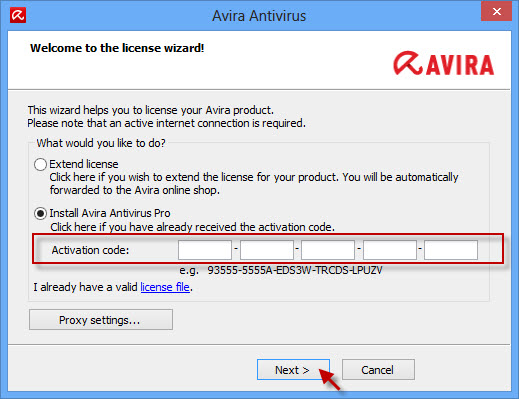
  5. To activate your purchased Antivirus product, enter the activation code and click Next

    Note
    You will find the activation code in the email you specified during the purchase process. If you do not find the email right away, please check your spam or junk folder.

    You misplaced your activation code please read:
    How can I get my Avira product activation code back if I lost it?

    antivirus-pro_license-wizard_en
  6. After the successful installation, a reboot of your computer is required

What you need to know about Office 2016 before you install it

Microsoft has just published the Office 2016 Preview application for home and enterprise. It is available to Office 365 subscribers, other Office users and non-Office users on the Office website.
If you are not an Office 365 subscriber, you can download a 32-bit or 64-bit installer for the Office 2016 Preview from the site.
A click on one of the download links loads a small stub installer to the computer system which downloads the full installation package when executed on it.
There is no information on how large that download is, but expect it to be hundreds of Megabyte large.
Use the product key NKGG6-WBPCC-HXWMY-6DQGJ-CPQVG on the system after installation when asked to enter it. You are asked to activate Office when you launch one of the applications that ship with it for the first time. There you need to click on the "enter a product key instead" link to provide the key above and activate the preview this way.
Note: Office 2016 Preview will replace existing versions of (desktop) Office on the system. Microsoft notes that you will be able to go back to those versions if you remove the Office 2016 Preview again from the PC.
System Requirements
word 2016 preview
Microsoft does not reveal system requirements for Office 2016 Preview on the download site. The company refers users to the general system requirements page for Office which lists different requirements based on Office products that you may use.
What we do know at this point is that you need Windows 7 or newer to install the preview on the computer (sorry Vista users).
If you take Office 2013 as a baseline, your computer should meet the following recommendations:
  • CPU: 1GHz or faster
  • Memory: 1GB for 32-bit and 2GB for 64-bit.
  • Hard Disk: 3 Gigabyte of storage space.
  • Display: 1024x768
The preview includes the following programs:
  • Acces 2016
  • Excel 2016
  • OneNote 2016
  • Outlook 2016
  • PowerPoint 2016
  • Publisher 2016
  • Word 2016
Office 365 subscribers can participate in the preview if their subscription comes with Office 365 ProPlus rights.
A wording on the Office 2016 Preview page indicates that preview users need to purchase an Office 365 subscription once the trial period expires to continue using Office 2016. The other option listed on the page is to uninstall the preview to go back to the original version (if one was installed on the PC).
Does this mean that an Office 365 subscription is mandatory for Office 2016? Or is this just about the Preview itself only which you need to upgrade or uninstall when it expires?
About the trial period. The trial of Office 2016 Preview expires in 179 days according to notifications displayed in the apps when you run them. The notification can be closed and won't show up the next time. It is likely that it will be displayed regularly though.
office 2016 preview expires
What is new?
A blog post over at the Office blog highlights major changes coming to Office 2016. Head over to read it in full or read our summary of the changes instead below.
  1. Real-time co-authoring comes to the Windows desktop. In the first preview version, only Word 2016 supports it meaning that you can work with other team members on Word 2016 on the desktop or Office online on the same document at the same time.
  2. Deeper cloud-integration to "create, open, edit and save" files from your desktop. Improved attachment of files from OneDrive in Outlook.
  3. New batch of smart applications and machine learning to improve how you work with the programs including Bing Insights support to retrieve web information, the Exchange feature Clutter which prioritizes mail and Tell Me, a search tool that finds commands you type.
  4. New analysis tools in Excel including one-click forecasting, integration of Power Query, improved Power Pivot, new charts and graphs, and option to publish to Microsoft Power BI Preview.
  5. Data Loss Protection for Word, Excel and PowerPoint.
  6. Multi-factor authentication in Outlook.
  7. Information Rights Management extended to Visio files.
  8. Better network traffic management, enhanced distribution management, flexible update management.
Now You: What is your take on the preview? Will Office 2016 become subscription-based only?
that might helps u..thanks

How To Install Whatsapp On PC, Complete guide

Whatsapp is a great messenger app for smartphones and other phones. Whatsapp is a messaging app which lets a person send messages to his friends or family members via internet connection. Whatsapp has redefined the meaning of messaging. It’s not just a messenger, it is more than this. Whatsapp is available for many operating systems like android, iOS, Nokia Asha and blackberry.

Whatsapp is a widely popular messaging application. You can download Whatsapp for your device from from its official website www.whatsapp.com. Select your OS and download Whatsapp for your device. Or you can simply download it from play store.

whatsapp for pc

Whatsapp for PC is one of the most searched term over the internet. The popularity of this awesome messaging app makes people search for Whatsapp PC version, that why we are sharing the tips to run Whatsapp for pc. There is no official Whatsapp app for pc but we can run and install Whatsapp on pc by using a simple trick which we are going to share in this article. In this article we will share the step by step process to run Whatsapp on pc. We will use an android emulator to run Whatsapp on pc. YouWave and Bluestacks are two android emulator which can make this work.

YouWave is a paid emulator so you can make use of YouWave if you can spend money for it but if you want a free android emulator then Bluestacks will do the job for you. So all you have to do is just read this post and follow the on screen instructions to get Whatsapp for pc.

First we will discuss the features of Whatsapp messenger

Features of Whatsapp Messenger
whatsapp for pc


1.Whatsapp messenger allows you to free messages to anyone in the world.
2. You can also send emoticons and smileys
3. There are tons on new emoticons
4. You can also send voice messages
5. You can send pictures and other attachments with Whatsapp messenger.

Whatsapp for PC/Laptop/ computer: How to make this Happen?
You can run get Whatsapp for pc and run it on your computer but you will have to take care of some things. First make sure that your computer is connected to internet because you will need a working internet connection in order to proceed and download whatsapp for PC. Once you are ready, follow the instructions.

1-Downloading Bluestacks to run whatsapp for PC

Go to the official website www.bluestacks.com and download Bluestacks. Bluestacks is an android emulator for windows operating system and it can work on windows 7/7 and other windows OS. And android emulator is a software which can help us run android apps and games on pc. So download bluestacks from the following link. Remember bluestacks needs a good graphics card and hardware to work. So don’t try to install iin in a system with less than 2GB of RAM and a good graphic card because it wont be installed and will give errors. The second thing is that your graphic card drivers should be updated as bluestacks is still in beta phase and detects only updates graphic cards. If your computer satisfies this criteria then download bluestacks.

whatsapp for pc

2- Installing bluestacks : get whatsapp for PC
When the download is finished, go to the .exe file of bluestacks and double click on it. If you are lucky and you are having a good configuration on your laptop, Windows OS will do the rest for you and install it in a matter of seconds or minutes. Then you can simply open it and begin searching for apps.

3- Searching and installing whatsapp : Install Whatsapp on PC
After bluetstacks has been installed you can open it by double clicking on bluestacks icon. Please wait for some time as the first launch might take some time. Then a windows will open with a seach box and some other options. Go to that box and type “WhatsApp”. Remember that you will need a working internet connection for this. When you are done press enter and a list of search results will appear. Now click on whatsapp and install it. It will take some time which depends on your internet connection speed. Now WhatsApp will be installed on your Windows PC. You can enjoy it.

PS: Whatspp will run either on your mobile or PC at a time. You cant run Whatsapp on PC and mobile at the same time.

How to download and install Firefox on Windows

his article describes how to download and install Firefox on Windows.
Before installing Firefox, make sure that your computer meets the System Requirements.
For advanced users: The Firefox download page linked below automatically chooses the best available version of Firefox for your computer and provides an online (stub) installer. If you need a full, offline installer or if you want to choose the language and operating system, visit the Systems & Languages page. You can download either the Windows (32-bit) Firefox version or, for 64-bit operating systems with Windows 7 and above, the new Windows 64-bit version of Firefox (see this blog post for details).
  1. Visit this Firefox download page in any browser, such as Microsoft Internet Explorer.

    again updated download Firefox
  2. Click on the Free Download button to download the Firefox installer. The page will automatically recommend the best version of Firefox for you.
    Alternatively, use this download link for the latest English (U.S.) Firefox version.
    • If you use Microsoft Internet Explorer, a notification bar will appear at the bottom of the page with the options to run the installer or save the file to your computer. Click Run to start the process.
    Fx-RUN-IE11Win7
    • In other browsers, you may need to first save the Firefox installer to your computer, then open the file you downloaded.
      Note: If you see an Open File - Security Warning dialog, click Run.
    9adf3cab7ac5be01d856c9d1020aa0da-1263064820-505-2.jpg
  3. Then, just click Install (we’ve made the process as effortless as possible).
    firefox stub installer
    Congratulations, you are done installing Firefox!
  4. Double-click on the Firefox icon whenever you want to go online.      

How to extract 001 files? complete guide

Most of the archived files that you can download from binary Usenet newsgroups have the following filenames: name.part01.rar, name.part02.rar, name.part03.rar etc. You can extract those files with WinRAR or the free program 7-Zip. But sometimes you will see files with the following filenames: name.001, name.002, name.003 etc, which I will call 001 files. In this howto (tutorial) you will learn how to extract these files. Extracting isn't the right name though: normally these files are not compressed like RAR files, but just split by a file splitter, without compression. Joining would be a better term for what we are about to do.
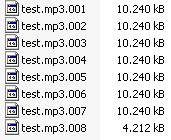
In this tutorial we will try to join the test.mp3 file that I made. As you can see in the image below this file is split into eight pieces that we have to join before we can listen to the test.mp3 file.
image
We can do this with three different programs: WinRAR, 7-Zip and HJSplit. It is up to you to choose which program you would like to use for this task: WinRAR, 7-Zip or HJSplit. Because many people have WinRAR installed on their PC, I will explain that program first. WinRAR isn't the best fit for this task though, so if you currently do not use WinRAR, just skip the next part and use 7-Zip. Only try HJSplit if both WinRAR and 7-Zip fail!

How did Extract an ARC File Format complete guide

ARC is a very popular archival and lossless data compression system. If you receive or download the data compressed by the ARC archiver, you will have to install a third-party application to extract them. There are various tools and software available on the Internet that enable decompressing an ARC file. This article explains how to download, install and use the FreeArc© application to unpack a compressed ARC file.

Extracting an ARC archive:

  1. Launch your Internet browser and go to the FreeArc© download site.
  2. Click on the “download (X.X MB)” link for your operating system in the table and save the setup file on your hard drive.
  3. Run the installation file. On the welcome screen, click on the “Next” button.
  4. Read the license agreement and click on the “I Agree” button.
  5. Specify the folder location and click on the “Next” button.
  6. Specify which features you want to have installed and click on the “Install” button.
  7. When the installation process finishes, click on the “Finish” button.
  8. Launch the application and click on the “Open Archive” icon on the main navigation bar. Locate the “*.arc” file on your hard drive and click on the “Open” button.
  9. Click on the “Extract” button on the main navigation bar.
  10. Specify the output directory and click on the “OK” button.
FreeArc© application to unpack a compressed ARC file

How to Create RAR Files with WinRAR

WinRAR is a great piece of software. Not only does it extract RAR’s, it also creates them. When you create an archive, you can compress the file making it smaller. Not only can you make it smaller, you can split the file into several parts so it is easier to upload to Usenet.
There are 2 ways to go about creating an archive or splitting a file. You can either open the WinRAR program and select the file you would like to compress or split. Once selected, you can click the “Add” button to bring up the Options window.
Or, the way we suggest, select the file you would like to compress, right click to bring up a menu and select the “Add to Archive” option for WinRAR. Either method that you choose, you will end up with this window.
Archive Name and Parameters
If your file is large, make sure you compress and split the file into smaller parts-RAR files. You can select your compression ratio and determine how the size of each RAR when you split the main file.
A – This option determines the strength of the compression or level of compression. Depending on the sizes and number of your files, the time it will take to compress may vary. Also, a general rule is that the higher the compression level, the longer the process will take. The default setting is “Normal.” If you want better compression or have a higher end processor or fast system, select the highest level compression setting: “best.” Using a higher compression setting generally gives you a smaller RAR size. Now, if you have a file that cannot be compressed anymore (Mp3 audio files, certain video files, etc.), select the “store” setting. This setting does not compress the file.
B – When splitting a file, this option allows you to define the size of each file. There is a drop down menu with predetermined sizes or you can enter your own value in that field. We recommend entering your own value to determine what size you want each RAR file to be. “What file size should I select for each RAR part you ask?” Good question. A general rule for a good split file size is about 10 to 15 MB (15,000,000 bytes) for a file size up to 2 GigaBytes (2,000 Megabytes). Anything larger you can create sizes of 20MB (20,000,000 bytes) to 30MB per RAR. If you are posting files that are 4 GB or larger, you should define each part as 50MB or 50,000,000 bytes. When you log into a binary group, you will see many RAR files that are of these sizes.
The smaller the size of each RAR, the faster it can be downloaded and uploaded to Usenet. Also, smaller file sizes are also easier to repair if they are missing blocks, incomplete, or are corrupt.
When you are done selecting your options, click “OK.” This will start the compression/split file process. WinRAR will bring up another window that shows the status.
Create RAR archive
Once the process is complete, WinRAR will throw the files into the same folder as the original file that was split. Now you are done splitting the file.

i hope that might helps u..thanks...

WinRAR Download and Installation Guide

You can download WinRAR from many sources but I usually like to get them from the site publisher’s site located here.
When you select the version of WinRAR you need from the page, it will bring up a window asking you to save the program. Click “Save File”
Winrar - save file
A – Click “Save File” to save RaRlab’s WinRAR to your computer.
Open the folder that contains the “WinRAR-release version.exe” file and click on the file to run the install process.

Winrar - click file
After you click the WinRAR install file, it will begin the install process by bringing up the install window. Make sure to review the terms of the license before you click “Install”
Winrar - install
A – Read the terms and conditions for Win Rar and then click “Install”
After you click Install, WinRAR will bring up a Setup window that allows you to choose what files templates you would like to associate with WinRAR. Select the file templates that you would like but I left that section alone. I did however check the box that asks to “Add WinRAR to Desktop” and “Add WinRAR to Start Menu.” After you select your options, click “OK”
Winrar setup
A – Select the file types you would like to associate with WinRAR
B – If you would like to have a shortcut for WinRAR added to the desktop and the start menu, check the boxes.
C – Click Okay once you have chosen the setup options for the WinRAR install.
It will quickly install the compression/UnRAR program and bring up a new window asking you for your next action. Either you “Run WinRAR” or click “Done” to run it at a later time.
Winrar setup 2
A – Click “Done” and now you are ready to use WinRAR.

How to Use WinRAR on pc complete instruction n guide

Level of difficulty: Easy

WinRAR is a compression tool. One of the application’s uses is to compress one or several files together. This is for reducing the size of the files for storage or transfer. WinRAR can compress the files in either ZIP or RAR file format. The program can also compress files into CAB, ARJ, LZH, AZE and ISO file formats. The WinRAR program may also unpack or extract files with a ZIP or RAR file format from the Internet.

Materials Needed:
- PC
- winrar archiver program
- file to compress
- compressed files
Step 1
Ensure that the computer you are going to use for compressing files has WinRAR program installed before proceeding with the compression of file.
Step 2
Select all the files to you want to compress by using the mouse and the CTRL button or the SHIFT button. The CTRL button is for selecting several files in the same folder or location. The SHIFT button is for selecting blocks of files.
Step 3
Right click on the selected files to display a drop down menu. Select the 'Add to Archive' option from the drop down list. This will display a WinRAR window menu.
Step 4
Input a name for the compressed files in the Archive name section in the General tab. Ensure that the name is not similar to any other compressed files in the save location.
Step 5
Select the file format of the compressed file after the deciding on the name. File formats can either be RAR or ZIP. There are also other options such as deleting of the original file after the compression, putting authenticity verifications, and putting a recovery record.
Step 6
Click the 'OK' button after completing all the required fields in the menu. The WinRAR application will compress the files and save in the same folder or location as the original files.
Step 7
The WinRAR program can also extract compressed files with a RAR or ZIP format. Select the files that require extraction using the pointer.
Step 8
Right click on the selected file to display a drop down menu. Select the 'Extract files' option from the menu. This will display a window from the WinRAR program.
Step 9
Specify where the extracted files will be located in the 'Destination path' option of the General tab. Do not replace the destination path if the extracted files will also be placed in the same location as the compressed file.
Step 10
Click the 'OK' button after filling the required fields in the window. This will start the extraction process of the RAR or ZIP file.
 HERE IS A COMPLETE GUIDE 4 HOW TO UNRAR FILES ON YOUR PC WITH IMAGES AND INSTRUCTIONS
 How to use WinRAR for extracting/UnRAR
  WinRAR is a great tool for extracting files from their compressed formats. One thing that makes WinRAR so popular is the ease of use. There are several ways to open an archive for unzipping one method is just by clicking on the file to open WinRAR and by Drag-and-dropping the file to your destination folder.
First, select a RAR file that is part of the archive then open the file.
WinRAR - select rar file
A – Select any RAR part of the archive
After you open the file, it will bring up a window showing you the details of the complete file. You can then highlight the file then drag and drop the file into the desired location.
WinRAR - open archive
A – Drag the file to from the Win Rar window into the desired location.
After you drag and drop the file into the desired folder, WinRAR will bring up a window showing the UnRAR process.
Unrar process
When the UnRAR/UnZIP process is complete, it will leave the finished file in the destination folder. Now your file is ready to be used.
WinRAR - finished file
A – Since Win Rar process is complete, now you are open to able the file.
I HOPE THIS MIGHT HELPS U..THANKS..

HOW TO Watch 3D movies on your non-3D laptop/desktop/TV screen

[How to] Watch 3D movies on your non-3D laptop/desktop/TV screen

 WATCHING 3D MOVIES ON YOUR NON-3D LAPTOP/DESKTOP/TV SCREEN VIA ANAGLYPH METHOD - WITHOUT MESSING UP THE COLOURS!

If you're into movies and technology, you might have wished to be able to view 3D movies on your ordinary laptop/desktop/TV display - but upon searching, you found that you can't do that without a specialized (and very expensive) 3D-compatible display, right? If the answer is yes, then you might be glad to discover that you can actually do that. :)

But HOW - without a 3D-compatible display? The answer is simple - there are several methods to view 3D, and we'll follow one that doesn't need a specialized display. :) The 3D method in fashion on current 3D compatible screens is stereoscopic 3D. But we shall follow the ANAGLYPH method - because as mentioned, you'll not need a 3D compatible display for that.
If you have some insight, you will ask a couple of questions at this stage, like:
 
i. Isn't Anaglyph supposed to totally spoil the colours of the movie? 
         Technically, yes; which is why this method became obsolete in the first place - BUT I discovered a simple workaround to this, (which I shall mention in the end); and if you follow it, you can bring the colours to a near-perfect representation :) So, if you follow the method in this guide, the colours of the movie will not be spoiled :)

ii. But can we watch standard 3D movies (in side-by-side format) as Anaglyphs without conversion?
         Yes you can - but not on standard players like VLC or Windows Media yet, you'll need to download a player like KM Player (my recommendation), Stereoscopic Player or any other player with a similar feature (e.g. Cyberlink PowerDVD). Don't worry though, it's easy!

iii. Doesn't Anaglyph 3D produce a poor effect compared to newer versions?
         Newer methods use a specialized screen and powered glasses to project separate images from screen layers into each eye. This gives the effect of having a binocular vision in the screen, just like you see real objects.
         In Anaglyph, two colours at the opposite end of the spectrum are used at each eye. One colour wipes the other out and stops it from being perceived. As two separate images are then seen by the eyes on the screen, those images give a similar and hence equal 3D effect as the newer method. You just need to set the colours right!
______________________________________

The Steps:

Okay, so you've decided to try this out. Here's what to do!

1. Getting/designing your pair of Anaglyph 3D glasses!

         Anaglyph glasses have different colours for each eye. Although several combinations are available, we'll stick to the traditional type, i.e. Red for the Left Eye, Blue for the Right.

         If you can find it at your local glasses' shop, that'll be great! With some old magazines, they used to give a pair of anaglyph glasses on a card frame. See if you got one. I got one when I was a child with some Jurassic Park book - lost it because it wasn't much use back then. Did give me the idea though.

         If you can NOT find it at the glasses' shop, no worries - for you can always tell the shopkeeper to make a customized one for you (like I did). Ask him to show you red and blue variants of sunglasses and choose a a nice red and blue shade. I'll drop some important tips below.

    i. Choose a lighter shade of blue. i.e. the blue colour should be more of a blend with a Cyan shade.
    ii. Red should be deep and should necessarily be red - not brown/orange. 
    iii. Darkness level of both sides should not be mismatched. Both should allow relatively equal amount of light.
My anaglyph 3D glasses.
          Some people might tell you to use coloured markers over transparency slides to make these glasses.  Please don't do that or you'll break my heart. This method really sucks! (but yes, you're guessing right; I tried this first :P  )

2. Getting a 3D movie
          Choose a movie of your choice and download it. The only tip I'm giving here is to check if the movie name carries a 1080p - 3D tag in the name. Imagine the pain of downloading a movie and finding it wasn't 3D at all ;) Open up the file you downloaded in VLC/Windows Media Player. If it shows two separate sections showing a nearly identical video, then you're on the right track. It should look something like this:


(Click to enlarge - side by side 3D shows up like this in ordinary media players)

         I highly recommend using "IMAX Under the Sea 3D" when you're trying this. This one has a really cool 3D depth effect which you might not find in many other movies.

3. Getting a 3D Player

         Ordinary media players do not play 3D movies as they should be played for being viewed. They will show up something like the screenshot in the previous step.

         You'll need to download a player that can run these side-by-side 3D files as Anaglyph. 

EDIT (26/01/2016): I now recommend you to use KM Player for playing 3D movies or u may also use cyberlink powerdvd 15..Load your side by side movie in it and press the 3D button at the bottom left. Originally, I recommended Stereoscopic Player in this tutorial but now KM is the better option!

4. Open up the 3D file in the player 

We're almost there!

         Open up the 3D movie in KM Player or Stereoscopic Player. 

In KM Player, you will need to use the 3D button at the bottom left. Right click on the player window and choose Red/Green Color or Red/Green Dubious.

For Stereoscopic player, you'll see a box asking how you'd like it to play. Choose Side-by-Side; Right Image first. 

         For best results, click View, scroll to Viewing method > Anaglyph and choose Half-colour anaglyph Red-Cyan.
I recommend half-colour anaglyph for best results.

In case the video seems stretched, simply click view, scroll to aspect ratio and change it to half-width or half-height.

That's it! :) You can now watch the video in 3D wearing your glasses. Without the glasses, your video should look something like this:


5. Setting up your display to minimize colour changes while watching the movie

         Anaglyph glasses spoil the colours, no denying that. However, I discovered you can easily tweak your display and minimize/eliminate this problem :) Most computers have an Intel processor have the Intel Graphics Panel that you can use for this purpose. (Making up a 3D profile for these settings in the Graphics Panel will save you from the trouble of setting these values again every time)
  1. For Intel users, Right-click desktop > Graphics Properties > Colour Enhancement.  (Others have their own graphics panels in which the settings below can be similarly used)
  2. With "All Colours"option selected, take the saturation to around 20. 
  3. Take contrast to 52.
  4. All colours = 20, Contrast = 52
  5. Now choose "Blue" in the colour option and take the saturation for this colour all the way back to zero. (Depending on your display colour tone, you might wanna set blue according to your need. i.e. cooler/bluish colour tone means you may take blue to a couple of points more negative.)
Blue = Back to zero - other colours stay put.

With these values selected, coupled with the "Half-colour anaglyph Red-Cyan" in the above step; the colours will be just fine! :)

Some more pointers:

  • If you're wear glasses for distant vision, keep them on as well over the 3D glasses. You'll need them for optimal results and focus.
  • To view 3D on your TV, output the video via laptop with the above parameters set. Alternatively you can convert a side-by-side 3D movie to Anaglyph using Xilisoft Video Converter and play it on your TV.
  •  You can convert a non-3D movie to 3D via Xilisoft video converter but the effects may not be very pleasing in this case. In this case, choose a high 3D depth, left side of the side-by-side video for right eye and right side for the left eye.
___________________________________

That's it! :)
Have fun watching 3D and thumbs up and share if you liked the guide.

Regards.
____________________________________
 EDIT - 26/01/2016

3D Test

If you followed the tutorial above and want to try out your glasses, take a look at the following picture. If you see a clear image and feel a perception of depth, you did it right :) 


A mighty frost dragon from Skyrim. Courtesy of Phaota. Thanks! :)

THANKS I THINK THATS MIGHT HELPFUL TO U...
IF U HAVE ANY QUESTIONS PLESE COMMENT ME...
THANKS..

10 Amazing Anaglyph 3D Images - Set 1

 AWESOME ANAGLYPH IMAGES

(NOTE: Images are seen best in their native resolution. Click on the image to view it in full size) 


! :)

8 Awesome Anaglyph 3D Images - Set 2

26/01/2016


Here are some more anaglyph 3D images with an excellent sense of depth.  (These are not my own productions and have been collected from the web based upon their great 3d depth). Have fun!

 AWESOME ANAGLYPH IMAGES

(NOTE: Images are seen best in their native resolution. Click on the image to view it in full size) 


wear your 3d glasses and watch the images...its fun..